Everyone needs a geek.

The scam stops on their screen. The choice comes to your phone.

A calm helper on your parent's computer: their Geek. It catches scams as they happen, shows them how to do everyday things one step at a time, and asks you before anything risky goes ahead.

Pay nothing today. Free during the beta, then from $19/month.

We're testing it now with founding families. It runs on Windows PCs today; Mac is not ready yet.

Let's pause for a second

Someone on the phone asked you to buy gift cards. Your bank will never ask for that.

  • They asked for the numbers on the cards
  • The caller said they were from the bank
I'll stop here I understand, continue

Sarah has been asked. Waiting for her answer.

Sarah says to keep it stopped. Please hang up the phone.

Mary's Geek

Needs you

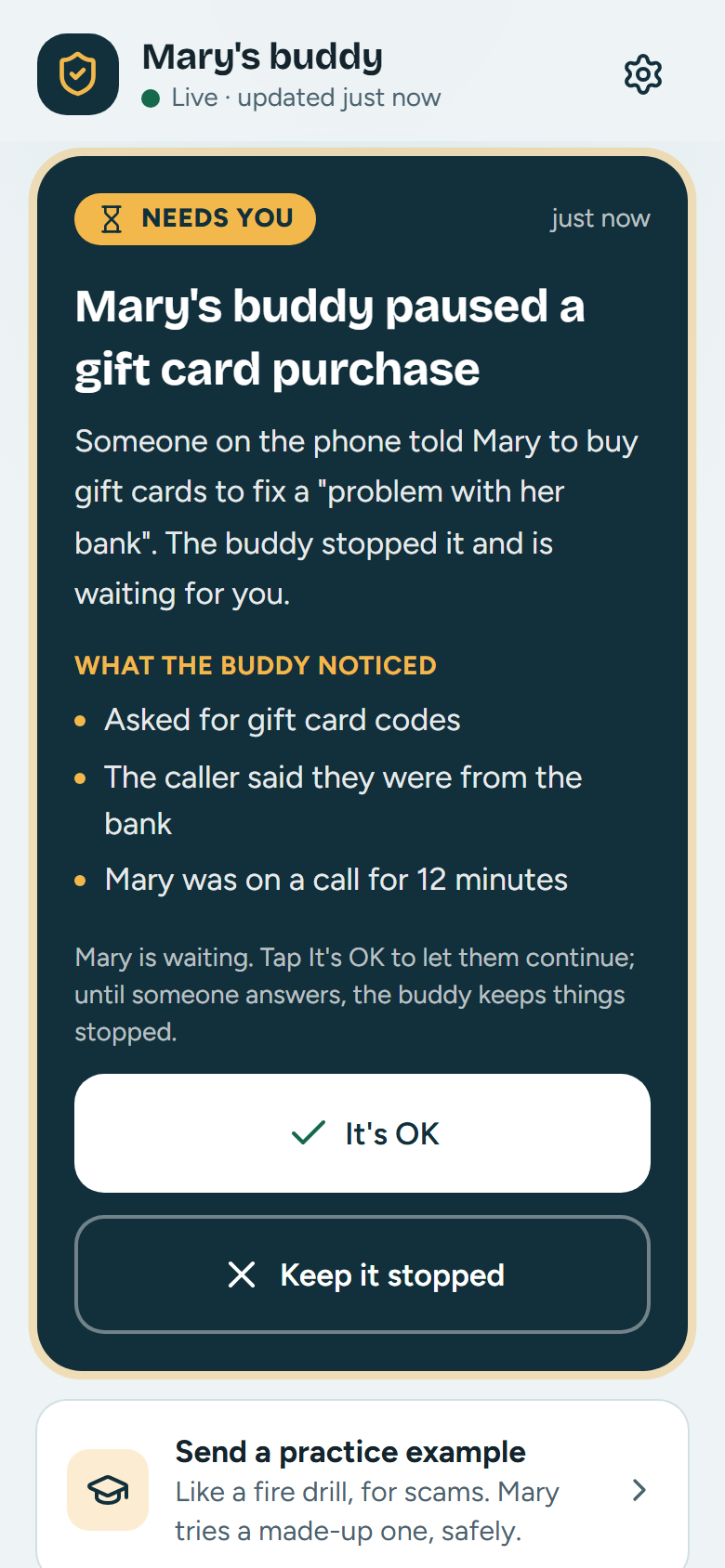
Mary's Geek paused a gift card purchase

Until someone answers, her Geek keeps things stopped.

It's OK Keep it stopped
On Mary's computer, her Geek pauses a gift card request from a phone caller. On her daughter Sarah's phone, a prompt asks what to do. Sarah taps Keep it stopped, and Mary's screen tells her to hang up.

What it catches

Fake virus pop-ups, “bank” and gift-card calls, remote-control programs, lookalike sites and fake emails, in English and Spanish. In our own first test on 100 new examples, it caught 96% of the scams.

Examples of what it catches

What it never does

Never asks for a password, a code or a payment. Never takes control of the computer. Never installs anything on its own. No pictures of the screen unless your parent asks.

The rules it follows

What it costs

Guardian: $19/month. With Geek on call: $49/month. Founding families reserve a spot and pay nothing today.

See both plans

How it works

  1. You set it up on their computer

    Their first name, who they should call when something looks wrong, and their language. It takes about two minutes.

  2. You join from your phone

    Scan the square on their screen or type the 6‑digit code. Brothers, sisters and grandchildren can join with the same code. Their computer asks before anyone new is let in.

  3. It stays quiet until it matters

    Most days it just helps. When money is about to move or a stranger tries to get into the computer, it pauses everything, explains why in plain words, and asks you. And when they're stuck, they can ask you: one button, Ask my family for help.

What it catches

These are the kinds of things scammers say: first what your parent sees or hears, then what their Geek does about it.

A pop-upYour computer is infected. Call this number now.

Tells them the warning is fake and not to call. Real warnings never ask you to phone anyone.

A phone call on speakerI'm from your bank. Move your savings to a safe account today.

Listens when they press Listen to my call, and puts up a stop card within a few seconds.

A stranger's programInstall this so I can fix your computer for you.

Any remote-control program that starts gets a stop card straight away, and the family is told.

An emailYour payment failed. Update your card within 24 hours.

Checks where the link really goes. A lookalike address gets a stop, in webmail and in the email program on the computer.

A lookalike websiteYour parcel is waiting. Pay a small fee to release it.

Spots addresses dressed up to look like a real company, before a card number is typed.

A money askBuy gift cards and read me the numbers. Or send it in crypto.

Pauses and asks the family. No real company asks to be paid this way.

A new friend onlineI feel so close to you already. Let me show you how I invest.

Gives a gentle caution early, before any money is mentioned. If the same chat keeps raising it over days, you get one kind heads-up, never the messages. Your parent hears about it first and can say "don't tell my family." This is the hardest kind to catch, and we're still improving it.

The examples are made up, but each kind is one your Geek is tested against. No tool catches everything, which is why the family gets the final say.

And on the other days, it just helps

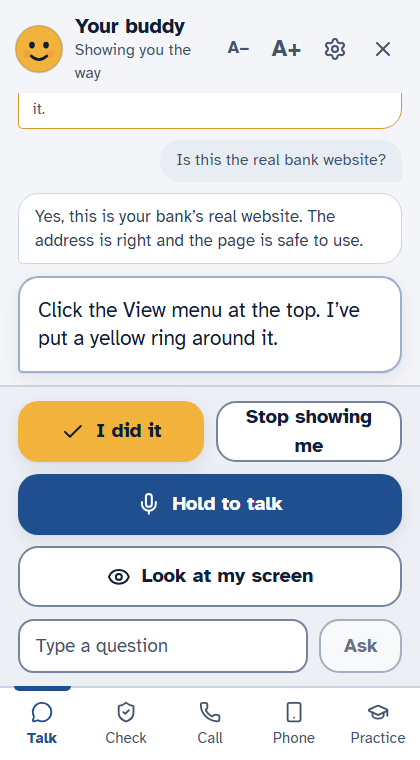
“How do I make the words bigger?” Your parent asks out loud or types it. Their Geek puts a yellow ring around the right button and goes one step at a time. It notices when the step is done and moves on.

It comes with more than 40 everyday how-tos, each in English and Spanish, and new ones arrive without updating the app.

It remembers the conversation, so a follow-up like “and now how do I print it?” just works. Talk over it, or press Stop talking, and it stops at once.

Not sure about a page? They press Look at my screen and their Geek checks that one picture.

If it sees them stuck, say the same error box sitting there or a print window opening again and again, it may offer help once, gently. Never during a call or a stop card, never while they're typing or talking, not overnight, and only a few times an hour. If they say “not now,” it stays quiet for a while. You can switch it off in setup.

Some things are quicker with a button than with steps. Their Geek can offer a card, such as open the right setting, check the computer's protection, or find and install a safe free program from a short list we have vetted. Nothing happens until your parent presses Yes. And the card says it plainly: if a stranger is asking you to press Yes on a Windows prompt, that is a scam.

Their Geek's window. It says: Click the View menu at the top. I've put a yellow ring around it. Below are the buttons I did it, Stop showing me, Hold to talk and Look at my screen.

It goes with them, on their own phone

Your parent can connect their own phone to their Geek. After that it works from anywhere, on Wi-Fi or cellular data.

Check a message or a pictureIs this text from my bank real?

They send it from their phone and the answer comes back in plain words, with the same scam checks as on the computer.

Push to talkCan you read this one to me?

They hold a button and speak, or ask to have the answer read aloud. No typing on a small screen.

You are toldA phone was just connected as Mary's own.

The family sees it whenever a phone is connected as your parent's own. That phone can hand things to their Geek and read the answers. It can't see the family timeline or decide anything.

Their computer asks first (“Is this your own phone?”), so a stranger can't link one. If the computer is off, what they sent waits for it for up to a day.

Built so it can't be used against them

Scammers pretend to be helpers. So their Geek follows rules a scammer never would, and it says them out loud.

  • It never asks for a password, a code or a payment. If anything does, that's the scam.
  • It never takes control of the computer. And any program that would let a stranger in is treated as danger.
  • No pictures of the screen unless your parent presses Look at my screen, or checks the box when asking you for help. Then one picture is checked, once.
  • It never installs or changes anything on its own. A guided action waits for your parent to press Yes, and installs come only from a short vetted list.
  • It doesn't read what they type into forms, and it skips password boxes completely.

What your family sees

  • When their Geek pauses or warns about something, in a sentence or two
  • When your parent asks the family for help, and exactly what they chose to send
  • A short note about the day, each evening
  • How a practice example went
  • One kind heads-up if a chat keeps looking like a romance or investment scam
  • When a phone is connected as their own

What your family can't see

  • Their screen. There is no live view and no recording
  • Passwords, or anything typed into a form
  • Their files, photos or browsing history
  • Anything, once they leave the circle
  • Their chats and messages. A heads-up never includes them
  • What's on their phone, apart from what they choose to send their Geek

Everything their Geek noticed and said is kept in a log on the computer, so nothing happens behind anyone's back.

The family phone app. A card marked Needs you says: Mary's Geek paused a gift card purchase. Someone on the phone told Mary to buy gift cards to fix a problem with her bank. Below are two buttons: It's OK and Keep it stopped.

The family circle

Everyone who joins sees the same live timeline on their phone, with an alert even when the app is closed. The first answer counts.

If you say Keep it stopped, the continue button disappears from their screen. If you say It's OK, they can carry on, and the message carries your name.

Until someone answers, the stop card stays up.

It works the other way too. When your parent is stuck, they press Ask my family for help, or just say “ask my son…”. They see exactly what will be sent before it goes, and a picture of their screen only if they check the box.

You get a Needs help card with quick replies, like “I'll call you in 5 minutes” or “Don't click anything, wait for me.” You can be the geek in the family without being on the phone every time.

Practice, like a fire drill

Their Geek has a Practice tab with made-up scams, clearly marked as not real. Your parent decides: scam, or looks fine? Either way, the feedback is kind.

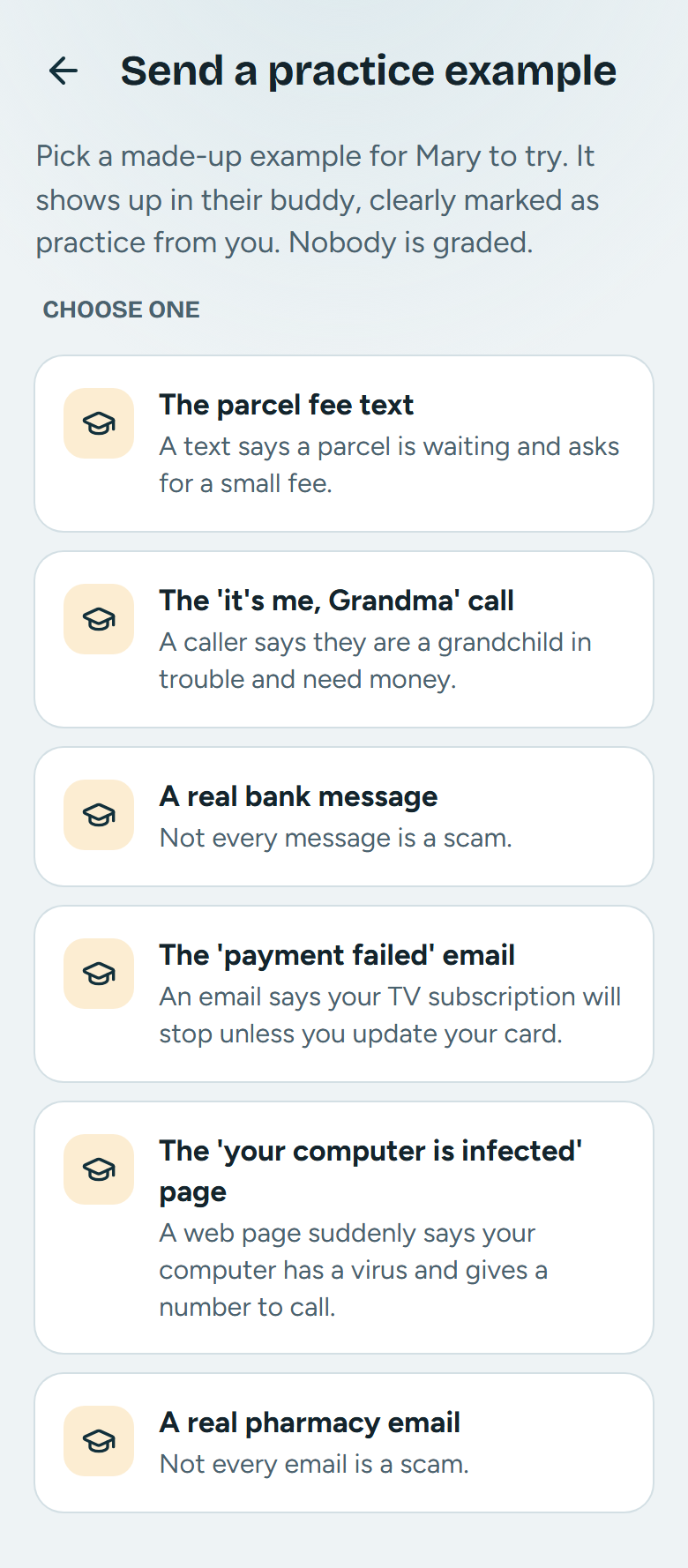
You can send one from your phone, like the parcel fee text or the "it's me, Grandma" call. You'll see how it went. Nobody is graded. There are lessons on romance and investment chats too, because those take weeks, not minutes.

Some examples are real, ordinary messages, because not every message is a scam.

There is a lesson on the “press Yes” scam too, where a stranger talks someone into approving a Windows prompt. And a short What's new tour, with Try it cards, shows them each new thing their Geek can do, by doing it.

The family app screen Send a practice example, with a list: the parcel fee text, the it's me Grandma call, a real bank message, the payment failed email, the your computer is infected page, and a real pharmacy email.

Not only for parents

Your parent may be the first to use it, but plenty of people who aren't old still call the geek in the family. You pick a mode in setup, and it can be changed later.

GuardianI'd rather not touch anything I don't understand.

Big text, every step shown, and it checks in often. Best when computers feel hard. This is where everyone starts.

HelperI can manage, I just want a hand.

A smaller window, fewer interruptions and short answers, with a one-button card where it fits. For confident people who aren't technical.

LearnerWhy does it do that?

Says why each step matters, and suggests a practice scam each week. For people who want to learn.

Scam protection is the same in every mode: their Geek still stops scams and tells the family when something is dangerous. It may suggest another mode, at most once a week, and it only changes if the person says yes.

What it costs

Founding families: reserve a spot, pay nothing today. You'll be asked before anything is charged.

Guardian

$19/month

Their Geek on their computer, and the family circle on your phone.

  • Stops scams as they happen, and asks the family before money moves
  • Step-by-step help with everyday things, by voice or typing
  • The family app for everyone in the circle, with Ask my family for help
  • Their own phone as a companion, and the practice scams

Guardian + Geek on call

$49/month

Everything in Guardian, plus a real person when the family can't answer.

  • When nobody in the family answers, your parent can ask a helper from our team, in English or Spanish
  • The helper replies in plain words and can suggest a fix. Your parent presses Yes, or doesn't
  • Your parent says yes first, and the session is recorded so it can be checked
  • Helpers never take control of the computer and never ask for a password or a payment

One Windows PC per family; everyone in the family circle joins free. The closed beta itself is free. These are the prices we plan to charge after it: you'll see the final price, and say yes, before you pay anything. Geek on call opens with our founding families: helpers answer in writing and see the screen only when your parent says yes; calls aren't built yet.

Questions

Is it spying on my parent? Do you see their screen?

No. A helper from our team sees the screen only after your parent says yes to that one helper: view only, never control, nothing recorded or stored, and they can press Stop any time. Otherwise nobody watches: the Geek looks at one picture only when they press Look at my screen.

What if it's wrong?

Sometimes it will be, which is why it pauses and asks instead of deciding alone: you answer It's OK and it carries on. In our own early test (100 new examples, not independent) it caught 96% of scams and flagged 6% of ordinary messages by mistake. Real life is messier, so you get the final word.

What about phone scams?

It can listen to a call only when your parent presses Listen to my call and puts the phone on speaker, and then it flags scam scripts. It does not block calls, see their phone, or catch scams that never touch their computer. A bank transfer made by phone alone is outside what we claim.

Does it work on a Mac?

Not yet. It runs on Windows PCs today (built on Windows 11; Windows 10 is being checked), and the browser helper works in Firefox, Chrome and Edge. Phones just need a web browser.

How much does it cost?

The closed beta is free and reserving a spot costs nothing; you'll see the final price, and say yes, before you pay. The plan we're testing is $19/month for the Geek and the family circle, or $49/month with a person from our team on call (not staffed yet). It may change after the beta.

Is my parent's data safe?

The log of what the Geek noticed stays on your parent's own computer, and it never asks for a password, a code or a payment. We collect only anonymous daily counts, never messages, websites or names, and you can switch even that off during setup. The legal pages are still being reviewed, so please read them before you join.

Who are you?

I'm Eli, and I build this myself, as a small independent project. Write to me by email during the beta and you'll get a real answer. It is not part of any bank, antivirus or tech-support company, and nobody from us will phone your parent out of the blue.

Can I try it?

Yes, in a small closed beta: reserve a spot and pay nothing today. We invite founding families in waves from mid-November and set it up with you on a 30-minute call. Your parent decides for themselves whether to try it.

My dad refuses help. What do I do?

Then don't install it behind his back: it only works if he says yes, and he stays in charge. Many people accept a helper that asks before it does anything more easily than an app for their safety. Show him it never takes over and that you get a question, not a view of his screen.

Will my parent find it confusing?

It's one small window with big buttons and a friendly face. They can talk to it or type, and make the text bigger with A+. It speaks plainly and kindly, and it never scolds.

Is there a real person behind it?

Yes, but the Geek never takes control of the computer: it shows your parent where to click, so they stay in charge. The $49/month plan adds a person from our team who answers in writing when nobody in the family can, and who sees the screen only after your parent says yes to them: look, never touch, never stored, and Stop ends it any time. It opens with founding families; calls aren't built yet.

Reserve a spot for your family

Pay nothing today. Only your email and a plan are needed; the rest is optional.

Which plan would you reserve?

It runs on Windows today. If they use a Mac, join anyway: it tells us how soon to build it.

By joining you agree to the beta terms. We use your email only to tell you about I Need My Geek, and delete it when you ask. More in the privacy policy.