
I Need My Geek: beta guide for the family member who sets it up
Thank you for helping us test. This guide is for you, the son, daughter or grandchild who sets up your Geek on a parent's computer. Your parent uses it every day.
Stuck at any step? Write to hello@ineedmygeek.ai or WhatsApp [number]. We answer in English or Spanish (section 11).
Read it once through. Setup takes about 20 minutes, and you do not need to be technical.
The beta is free; you pay nothing today. After the beta the plan is "from $19/month", and you will see the price and say yes before anything is charged. It is unfinished software, Windows only. It will miss some scams. It does not replace your bank's protections.
A one-page card to print for your parent: Print the card for your parent. It is short, in large type, and fits on one page.
1. Before you start
You need
- Your parent's Windows 10 or 11 computer (64-bit), on and online.
- Chrome or Edge on it. (Mac, Chromebook, tablet and phone-only homes cannot join this beta, sorry.)
- Your own phone. The alerts arrive there.
- About 20 minutes, with your parent there for the first 5: one screen is theirs to answer.
- If you are not in the same room, a phone call with your parent.
Talk to your parent first. This is the most important step. In your own words:
- Your Geek is a helper on the computer. It watches for scams, shows how to do everyday things, and asks you when something looks risky.
- It never asks for a password, a code or money. It never takes over the computer.
- They can turn it off or remove it whenever they want, without asking anyone.
If your parent is not sure, stop and try another day. It has to be their choice.
2. Install
Heads-up: at step 3 Windows shows a blue box, "Windows protected your PC". That is expected, and step 3 says what to press.
- On your parent's computer, open ineedmygeek.ai/download and press Download for Windows. Only download from this address; ignore any link someone sends you. (Spanish: ineedmygeek.ai/descargar. The page also has a "Check the file (SHA-512)" box.)

- Open
I-Need-My-Geek-Setup.exefrom the Downloads folder. The installer follows the language of Windows and takes about a minute. - The blue box: "Windows protected your PC". Windows shows it for any new program, and ours is new. The download page draws it so you can match it.
- Click More info (small text on the left of the box).
- Click the new button, Run anyway.
- If Windows asks whether to allow the app to make changes, choose Yes.
- The installer puts I Need My Geek on the desktop and in the Start menu, and the Geek starts with Windows from now on. When it finishes, the setup screens open by themselves.
Why the box? Windows trusts programs many people have already installed. It does not mean something is wrong. Do not turn off SmartScreen or the antivirus to get past it.
Stop if the box looks different, or the file came from anywhere else (an email, a message, a link someone sent). Do not run it; write to us (section 11). The same if Windows or the antivirus blocks the file completely. Do not look for tricks online.
3. The setup screens
A consent screen, then six short steps, one card at a time. Nothing starts until the last button, and you can go back to change anything.
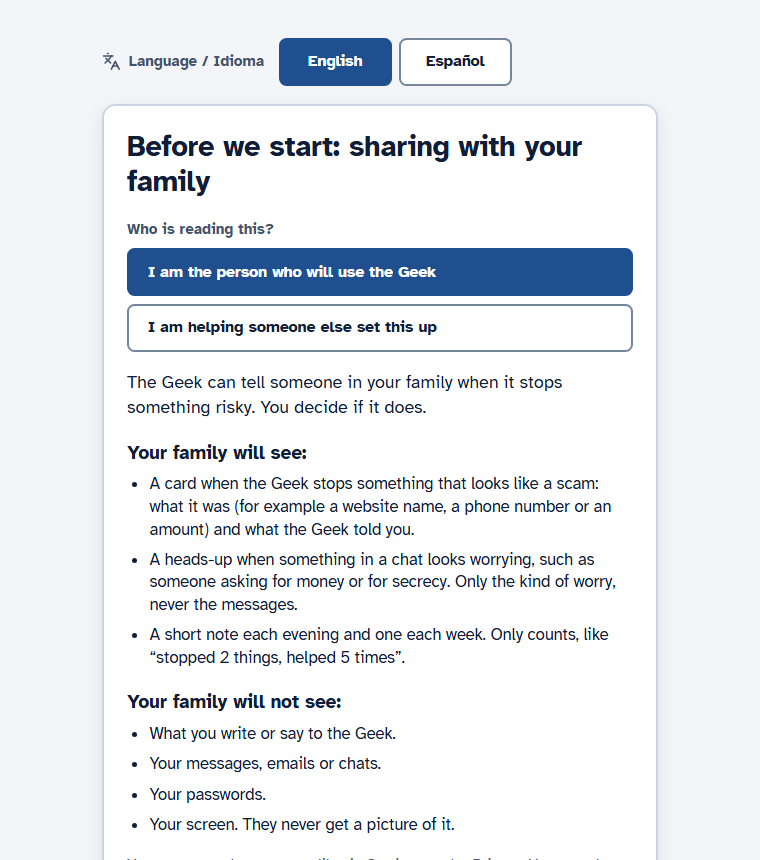
First screen: "Before we start: sharing with your family".
This one is your parent's. At "Who is reading this?" choose I am helping someone else set this up, then let your parent read the screen (or read it to them):
- Your family sees a card when your Geek stops something that looks like a scam, a heads-up when a chat looks worrying (only the kind of worry, never the messages), and a short note each week or evening with counts.
- Your family does not see what your parent writes or says to the Geek, their messages, emails or chats, their passwords, or their screen.
Your parent presses Yes, share with my family or Not now. With "Not now" the Geek still helps and guards, but tells nobody. Never press it for them.
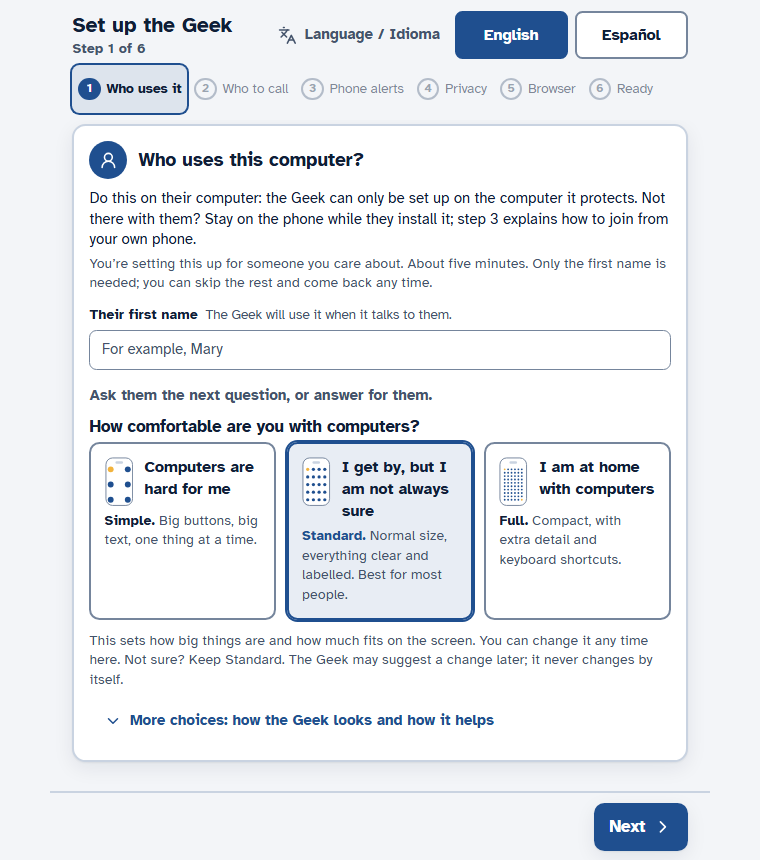
Then "Set up your Geek". Each card shows "Step 2 of 6" (or whichever step), the language choice, and the steps by name: Who uses it, Who to call, Phone alerts, Privacy, Browser, Ready. Tap a step you already reached to reopen it; a finished one says "(done)". At the bottom: Back and Next; an optional step also has Skip this step. Enter moves on, Back keeps what you typed, and a half-finished setup keeps your answers for 12 hours.
Step 1, "Who uses this computer?" Type their first name under "Their first name". It is the only required answer. Then "Ask them the next question, or answer for them":
- How comfortable are you with computers? Simple (big buttons, big text, one thing at a time), Standard, or Full. If computers feel hard for them, choose Simple. Not sure? Standard. It never changes by itself.
- More choices: how the Geek looks and how it helps: Guardian (every step, checks in often), Helper (short answers, fewer interruptions) or Learner. The default follows the level. All three stop scams, so leave it unless you have a reason.
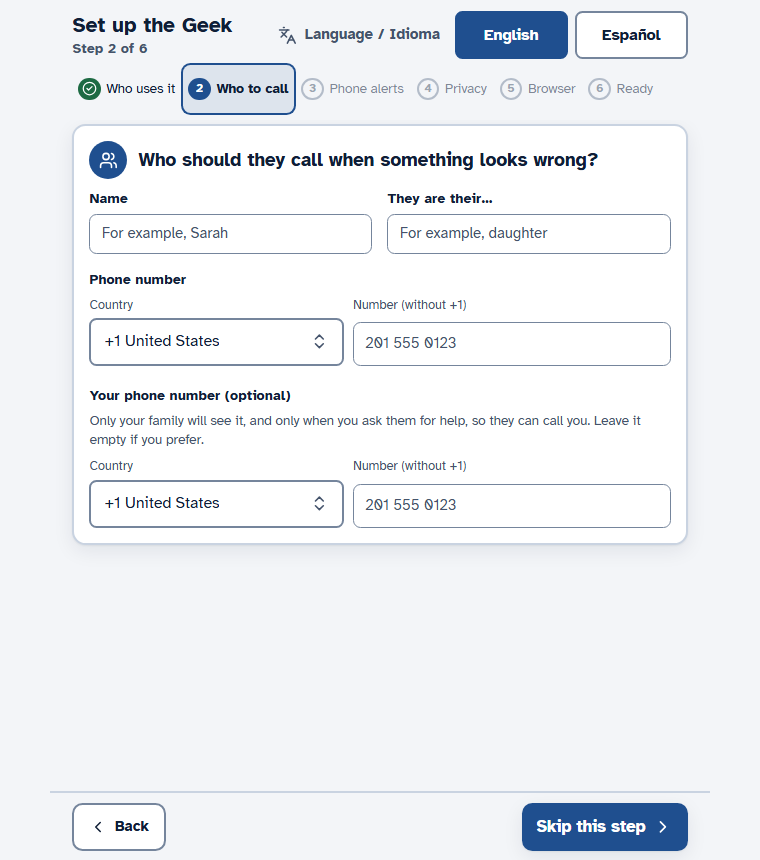
Step 2, "Who should they call when something looks wrong?" Your name, how you are related ("They are their…", for example daughter) and your phone number. Their own number is optional. If a number looks incomplete for the country, Start brings you back here with the cursor in the field.
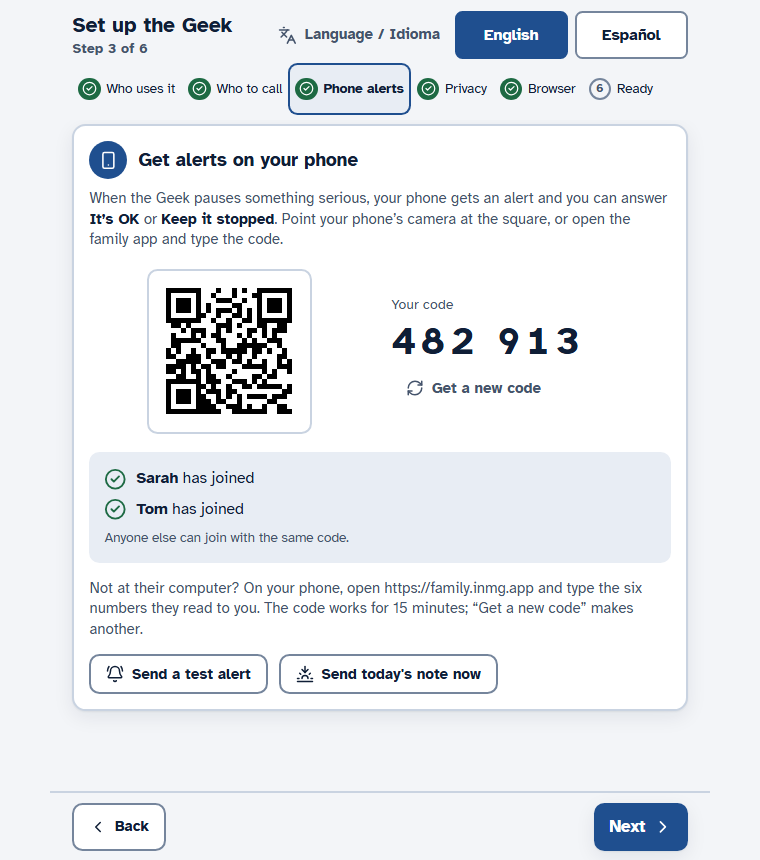
Step 3, "Get alerts on your phone". A square code (QR) and "Your code", six digits. See section 4. No phone to hand? Skip this step: the Geek still protects them, and you can add phones later.
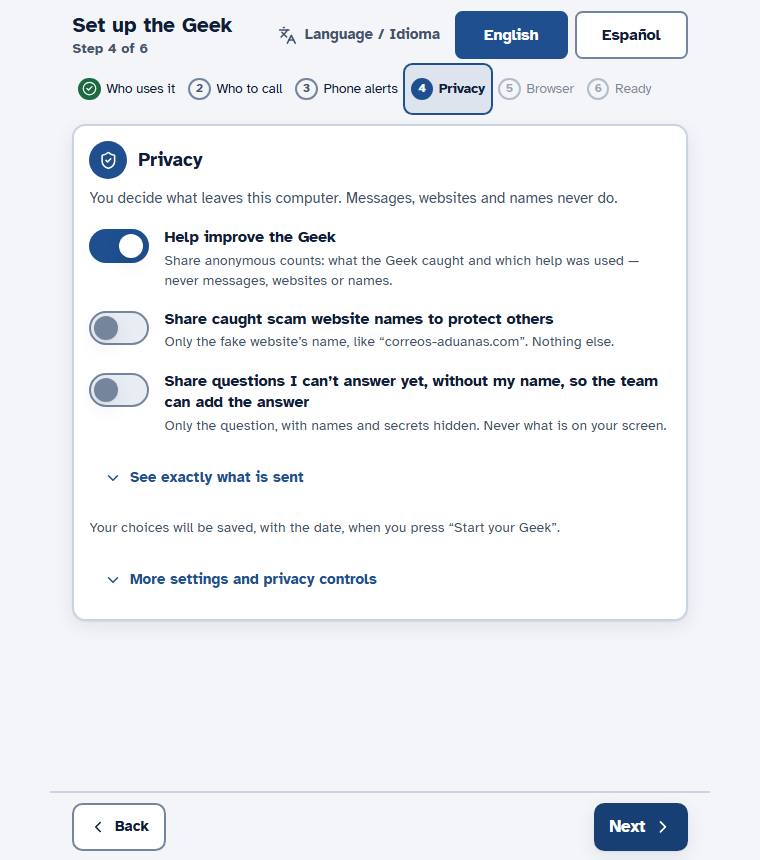
Step 4, "Privacy". What leaves the computer. Messages, websites and names never do. On a first run the later controls (Clear my history, Send my Geek's log, Stop sharing with my family, Delete the family circle) are folded under More settings and privacy controls.
About the privacy choices. "Help improve the Geek" sends anonymous counts once a day, like "stopped 2 things"; never messages, web addresses or names. Please keep it on: it is how we learn whether the Geek helps. Off is fine too; you stay in the beta and we rely on your check-ins. See exactly what is sent shows today's report. The other choices are yours.
Step 5, "Add the internet helper". Optional, and only shown when the app offers it. See section 5.
Step 6, "Ready to start". A summary: who uses the computer (level and mode), who gets called, which phones get alerts, what leaves the computer. Each line has Change.
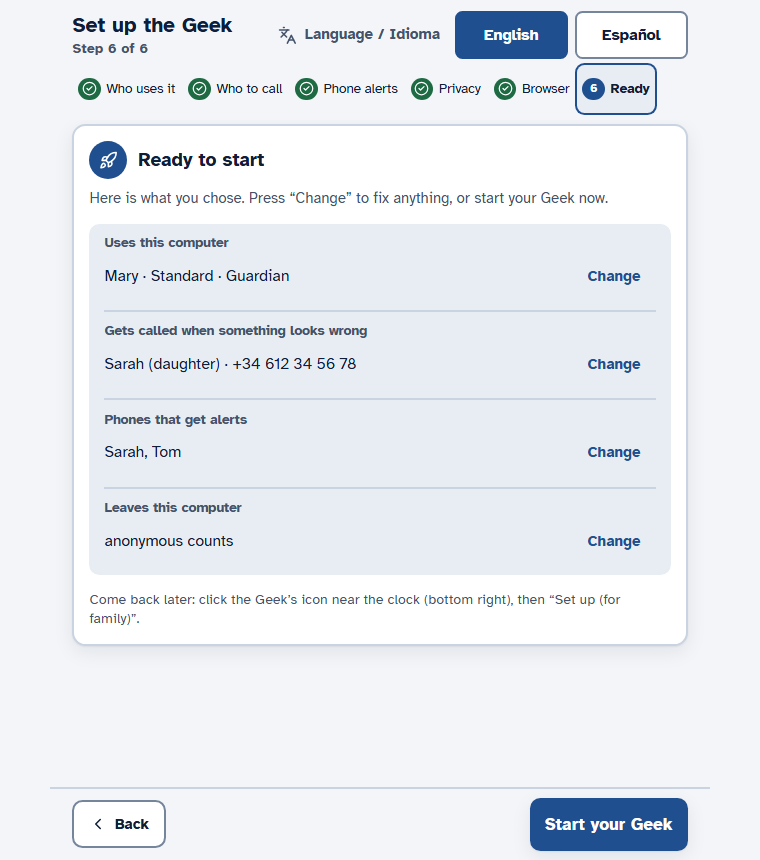
Last: press Start your Geek. The window closes, the Geek opens and says hello out loud, and a short welcome tour appears (section 6).
Not at their computer? Stay on the phone while they install it, and join from your own phone in step 3 (section 4).
Short of time? Only the first name is needed. Finish later: click the Geek's icon near the clock, then Set up (for family).
4. Pairing your phone
Your phone is where your parent's Geek asks you things. No account, no password.
- On your phone, point the camera at the square code and open the link. Or open the family app at relay.ineedmygeek.ai and type the 6-digit code.
- Type your name, how you are related, and press Connect.
- Your parent must press "Allow" on the computer. The Geek window shows "Mary wants to join your family circle. Is that all right?", sometimes in a second window beside setup. Until then the setup card shows an hourglass and "wants to join. Press “Allow” in the Geek’s window that just opened", and your phone waits. After Allow it says "has joined".
- Press Send a test alert on the setup card. Your phone should show it. iPhone: open the family app in Safari, tap Share, Add to Home Screen, open it from there, and turn on alerts in its Settings (iOS 16.4 or newer). Android: allow notifications when Chrome asks.
The code lasts 15 minutes; Get a new code makes another. Not at their computer? Ask your parent to read you the six numbers.
"The family service cannot be reached right now": check the computer is online and press Try again, or start the Geek and add your phone later. If it says the family service address is missing, that is our mistake: write to us (section 11).
By default you get one calm summary a week (Sunday evening); change it to daily or off in the family app's Settings. Scam alerts and questions always arrive at once.
5. The browser helper (optional)
A small add-on for Chrome or Edge. It lets the Geek see which page is open, so it can warn about a fake bank or delivery page before anyone types. It reads the address, the title and the first words of the page; on sign-in pages, only the address. It never reads what is typed: no passwords, card numbers or codes.
The step has a Later button at the top. If the screen asks for "Developer mode" or "Load unpacked", press Later and tell us; that method is for developers, and we will arrange a simpler one. The Geek works without the helper, but sees fake pages less well.
6. What your parent will see, and what you will see
Right after setup: the welcome tour. The window says "Welcome! Here is what I can do": big cards, one at a time, each with Try it, plus Next, Back, Skip and finally Done. Try it does the real thing. Standard and Full have six cards; Simple has three (the first, second and last), because Simple has no Practice tab.
| Card | What Try it does |
|---|---|
| 1. Check my computer's protection | Opens the Check tab on "This computer's protection" (below). |
| 2. Ask your Geek anything | Opens Talk and asks "Where is the print button?" for them. |
| 3. Spot a fake sign-in page | Opens Practice on a safe fake sign-in page. |
| 4. Find out who really sent an email | Opens Practice on the "who sent this" lesson. |
| 5. Practice spotting scams | Opens Practice. Nothing there is real. |
| 6. Ask my family for help | Opens Talk and the "Ask my family" card. Nothing goes until they press Send. |
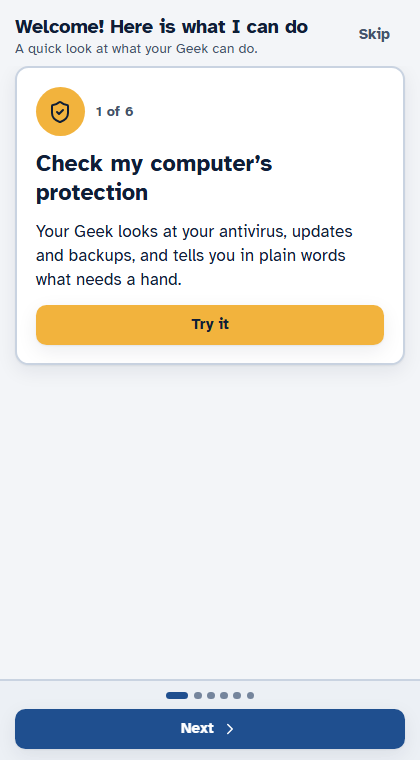
After an update, the tour comes back as a short "What's new" list. Skip is always allowed.
Tomorrow morning, and every day after.
- Your parent switches on the computer and the Geek opens with it: "Good morning, Mary", a short line, three suggestions, and three big buttons: Hold to talk, Look at my screen, Ask my family.
- They press ×. A note appears by the clock: "I'm still watching out for you." × only hides the Geek; it keeps watching. Quitting is only in the menu of the icon by the clock ("Quit (stops protection)").
- Most days nothing else happens. A quiet week is normal, not a failure.
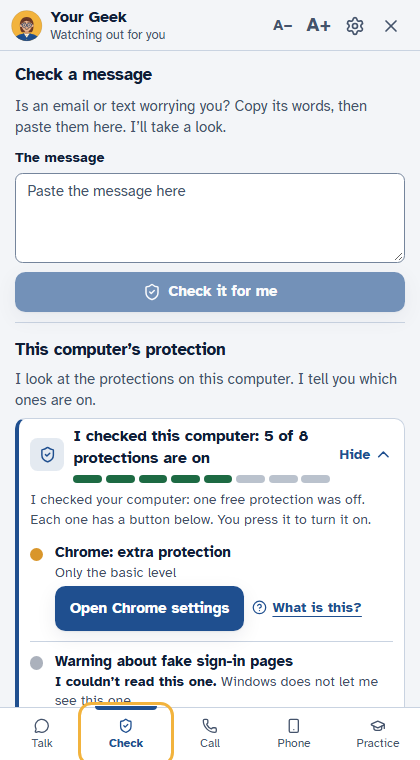
The Check tab: "This computer's protection". Open Check (or right-click the icon by the clock, Check this computer’s protection). After "Checking…" a card says, for example, "I checked this computer: 5 of 8 protections are on", with Show and Hide. Each protection (antivirus, firewall, updates…) says On, Off, or "I couldn't read this one", with a plain "Why it matters". "I couldn't read this one" is honest, not a fault: Windows hides a few settings from ordinary programs.
- What your parent does: nothing is required. Once in the first week, sit with them and press Fix the first one (Simple) or the button on a protection that is Off, then follow the guided card in Talk. It warns before any "Yes". Check again refreshes it.
- What leaves the computer: no files are read. While sharing is on, the family app gets only the count and which protections newly went off. The Geek brings the check-up back once a week.
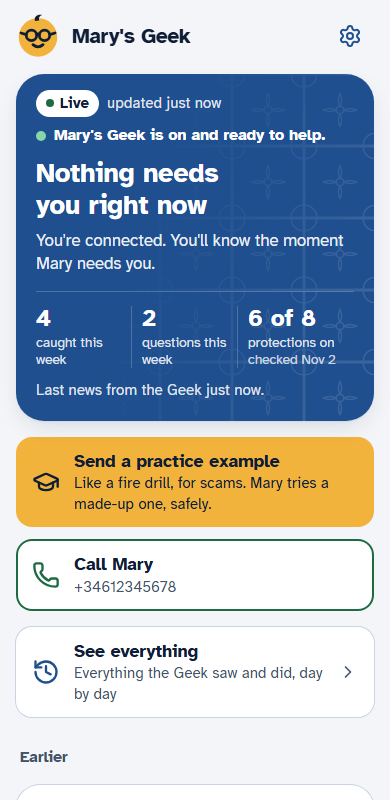
What you see on your phone. The family app's home says "Mary's Geek is on and ready to help", above it "Nothing needs you right now" or "Mary needs you now", and "This week at a glance": caught this week, questions this week, protections on (for example "5 of 8"). If it cannot reach the family service: "Can't reach Mary's Geek right now" and Try again now; it also keeps trying by itself.
- See everything opens "Everything Mary’s Geek did": one card per day, newest first, in plain words. It shows what happened, never what was on the screen. A new circle says "Nothing to show yet. That's good news."
- When something looks risky, your parent sees "Let's pause for a second" with I'll stop here, Ask my family, I understand, continue. If they ask, your phone gets the question: answer It's OK or Keep it stopped. No answer in time means it stays stopped. Please answer within the hour when you can.
- About 20 seconds after you answer, "Was it right to pause this?" appears: Yes, No, Not sure. Optional, and the most useful thing you can tell us about false alarms. "No" is a good answer.
Small daily things. A few small helpers sit on top of the Geek. Each can be switched off on our side, so if you do not see one, it may be switched off. None of them speaks to your parent unasked.
- Good morning. Under the greeting, your parent may see a small button, Say good morning to Sarah (Sarah is you, the person they call). One press, once a day. You get a quiet card, "Mary said good morning", with three fixed replies: Good morning, Mary! (her own first name), Thinking of you and Call you later. You cannot type your own words, on purpose: it keeps scammers from copying a family voice. Your parent sees your reply on screen, once. If they never press, nothing happens and you get no alarm.
- A quiet hour. If your parent wants peace, the icon by the clock has Be quiet for an hour and Until tomorrow (in the Geek window it asks "Need some quiet?"). The Geek then stops speaking and offering, and says "Quiet until 3:40. I still stop anything dangerous." Danger still stops, and it will not go quiet during a call or while a stop card is open. Wake up ends it. Quit (stops protection) now asks first, "Quiet for an hour instead?", with Quiet for an hour and Quit anyway.
- Their bank. In setup step 1, under Their bank (optional), pick the bank they use (Spain, United States, or Other / none). Only the bank's name is kept, on that computer. A card then says "Its real address: ..." with Open my bank, which opens that real address and nothing else. A bank link in a message is still never trusted.
- Your photo. In setup step 2, A photo of the person they call (optional), then Choose a photo. It shows on the "Let's pause for a second" screen, next to their answer, so a familiar face is there at the risky moment. It stays on that computer and is never sent. Change the photo and Remove the photo are in the same place. With no photo, nothing shows.
- This week's scam. On Tuesday (or the first day they open the Geek after), your parent may see one silent card, This week's scam: ..., with Try it and Not now. It is a practice, never real, and never spoken. At most one a week, and it waits if the Geek is busy. Waved away twice quickly, it rests for four weeks. Your Sunday note may say "Mary practiced this week's scam and spotted it".
- A livelier hello. The line under "Good morning, Mary" may be a little livelier and know the day. It is text only; nothing new is spoken.
- Your first catch, on your phone. The first time the Geek stops something and a family member keeps it stopped, you see one card: "Mary's Geek just did what you set it up for." Press Tell Mary well done to send a fixed "Well done!" to her screen, or Copy a note to share. Nothing is sent unless you press.
- A nudge when it is off (off by default). If this is switched on for your home and the Geek has not been on for 48 hours, you get one quiet note: "Mary's Geek hasn't been on since Monday." It never comes in your first 3 days. If you never see it, that is normal.
7. How to try it safely
Nothing here is real. You cannot hurt anything.
- Practice tab. Made-up scams, always marked "Practice: this is not real". Your parent presses This is a scam or This looks fine and sees what to notice.
- Send a practice example from your phone. In the family app, press Send a practice example, choose one, send it. It appears on your parent's computer, marked as practice from you; then you see "Spotted it" or "Didn't spot it this time". A fire drill, not a test. Please do one in the first week.
- Check tab. Paste an email or text that worries your parent, and the Geek takes a look.
- Ask it something. Hold Hold to talk and say "Where is the print button?", or type it.
Please do not test with real scam software or real remote-access tools on your parent's computer.
8. What your Geek never does
- It never asks for a password, a code or money. Anything claiming to be the Geek that asks is a scam. Tell your parent.
- It never takes remote control of the computer. Anything that asks to is a scam.
- It does not record the screen. It looks at small signals: window titles, page text it is shown, programs that start. It takes a screen picture only when your parent asks it to look, or checks the box when asking family for help.
- It listens to a phone call only when your parent presses "Listen to my call", after a dated yes. It does not record the call.
- It does not catch everything. In our first blind test it caught about 96 of 100 scams and bothered people for nothing on about 6 of 100 normal messages: a first run on a small set. Real life may differ; that is what this beta is for.
- It does not see scams that happen only on the phone (a text, a WhatsApp call, a call to their phone), unless your parent uses the Check tab or Listen to my call.
- If your parent asks for one and agrees, a helper from our team may reply in text. If your parent says yes to "Let the helper see your screen while they help?", the helper can look at the screen but never touch it, only your parent can press Stop, and nothing is stored. Helpers never ask for passwords or payment, and never take control.
9. If a scam got past it, or it bothered you for nothing
Money first. Call the bank (the number on the back of the card), then the police (Policía Nacional or Guardia Civil in Spain; local police and the FTC in the US). Then tell us.
Write to us with what happened, roughly when, and whether it was on the computer or the phone. We may ask to read the Geek's log for that time. We never connect to your computer, and you can say no. If you agree:
- On your parent's computer, open the Geek's settings, Privacy (after the first run: More settings and privacy controls).
- Press Send my Geek's log to the family service for a problem report. Only if we asked. It sends the last 7 days of what the Geek saw and did, with names, passwords, codes, long numbers and e-mail addresses hidden first. We delete it after 30 days.
- The screen says "Sent" and where a copy was saved. Your family sees a note in See everything. If it could not be sent, e-mail us that saved copy.
The full steps are in "Report a problem", sent with your invitation.
10. Stop sharing, or remove everything
You or your parent can do any of these at any time, without asking us.
| I want to... | How |
|---|---|
| Pause sharing with the family | Geek Settings, then Privacy: Stop sharing with my family. Nothing reaches your phone until it is back on. |
| Clear what the Geek remembers | Clear my history, same place. |
| Delete the family circle | Delete the family circle, same place. Phones and everything kept for them are erased, for good. |
| Leave from my phone | Family app, Settings, Leave this circle. |
| Remove the Geek | Windows Settings, Apps, I Need My Geek, Uninstall. |
| Erase what is stored on the computer | After uninstalling, delete the folder %APPDATA%\INMG Buddy (type it in the File Explorer address bar). |
| Remove the browser helper | In Chrome or Edge: the puzzle-piece icon, manage extensions, remove. |
| Have our server data erased | Write to us. Today we do this by hand, within one month. |
Off for now only: right-click the Geek's icon by the clock, Quit (stops protection). It starts again with Windows.
11. How to reach us
- Email: hello@ineedmygeek.ai (English or Spanish)
- WhatsApp: [number]
- Our hours and response times are in your invitation.
How to know it is really us: we only use this address and ineedmygeek.ai. We never ask for a password, a bank code, money or remote access. Anyone writing in our name who does is a scammer: do not answer, and tell us.
Once a week we send four short questions (two minutes). Honest answers, including "it annoyed me", help us most.